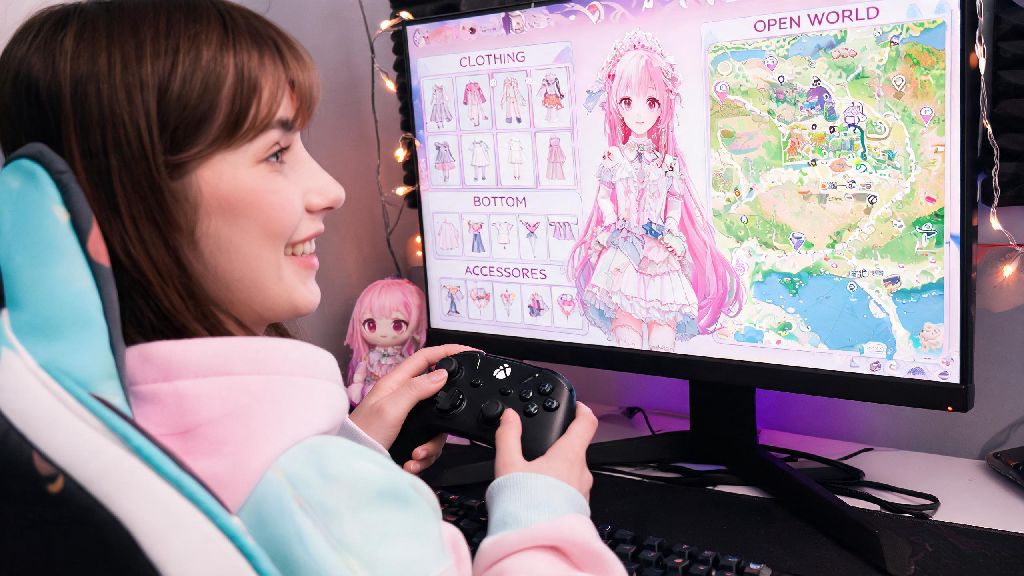
If you’ve spent hours styling Nikki’s outfits, exploring the open world, and completing side quests in Infinity Nikki, you’ve probably wondered if you can play Infinity Nikki with a controller for a more comfortable experience. Touch controls work great for quick sessions on the go, but they can leave your fingers cramping during long dress-up challenges or open world exploration. Many players prefer the tactile feel of analog sticks for camera movement and precise inputs, so it’s a common question across official forums and community groups.
Can You Play Infinity Nikki With a Controller: Official Status First
As of the latest game update, official controller support for Infinity Nikki is limited to certain platforms. The PC port of the game natively supports most Xbox and PlayStation controllers, with pre-configured input mappings for camera movement, outfit selection, and quest interaction. Mobile versions (both iOS and Android) do not have built-in controller support yet, though developer notes from the last community Q&A confirm the team is testing native support for a future patch. If you’re playing on mobile right now, you’ll need to use third-party workarounds to get a controller working, which we’ll break down in the next section. Note that unofficial workarounds may not work after game updates, so always test after downloading a new patch.
Step-by-Step Setup for Controller Play on Unsupported Platforms
For Android users, the most reliable workaround is using a key mapping app that converts controller inputs to touch gestures on your screen. These apps are popular for all sorts of mobile games that lack native controller support, from open world RPGs to casual puzzle and card games that people play for short breaks between longer sessions. Many players who swap between different mobile game genres even use the same mapping app for both Infinity Nikki and casual titles like Rummy77, since it lets them keep consistent input settings across all their favorite games. To set it up, first pair your Bluetooth controller to your mobile device via your system settings. Next, open your key mapping app, select Infinity Nikki from your installed game list, and drag input mappings to match the on-screen button positions for movement, camera, menu navigation, and interaction.
Save your profile, launch the game through the mapping app, and test your inputs to make sure everything works correctly. We recommend testing your mappings in a safe, non-time-sensitive area first, like your home closet, before jumping into timed challenges. For iOS users, the process is a bit trickier, as Apple restricts third-party key mapping apps on most devices. The only consistent workaround for iOS right now is using a compatible MFi controller with a custom shortcut profile, though results vary based on your iOS version and controller model. You can find pre-made shared profiles from other Infinity Nikki players on community groups if you don’t want to build one from scratch.
Pros and Cons of Using a Controller for Infinity Nikki
Plenty of players swear by controller play for Infinity Nikki, but it’s not the right fit for every playstyle. We’ve broken down the biggest advantages and drawbacks to help you decide if it’s worth setting up:
If you only play Infinity Nikki for 10 to 15 minute sessions on your commute, you’ll probably find touch controls work better for your needs. But if you regularly sit down for multi-hour sessions to collect materials for new outfits or complete story quests, a controller will make the experience far more enjoyable. You can always swap between controller and touch controls depending on what you’re doing in the game, so you don’t have to commit to one input method permanently. For example, you can use a controller for exploring the open world, then switch to touch for fast-paced minigames that require quick, precise taps.
Tips for Better Controller Gameplay in Infinity Nikki
Once you have your controller set up, there are a few small tweaks you can make to improve your experience even more. First, adjust your analog stick sensitivity in the key mapping app or in-game settings to match how fast you want to move the camera or Nikki herself. Most players prefer a lower sensitivity for dress-up menus, to avoid scrolling past the outfit they want to select, and a slightly higher sensitivity for open world movement. Next, create custom profiles for different game modes if your mapping app allows it. You can have one profile for exploration, one for dress-up, and one for minigames, so you don’t have to re-map your buttons every time you switch activities.
Avoid mapping too many functions to a single button, as this can lead to accidental inputs that mess up your gameplay. If you run into input lag, make sure your controller is fully charged, and that there are no other Bluetooth devices connected to your phone or PC that could be causing interference. If the lag persists, try a wired controller connection instead of Bluetooth for more consistent inputs. You can also check community forums for updated profile settings shared by other players, which are often optimized to reduce lag and input errors for common game activities.
At the end of the day, whether you prefer touch, keyboard, or controller inputs, the most important thing is that you’re comfortable while you play. Now that you know you can play Infinity Nikki with a controller on most platforms with a bit of setup, you can test the option out for yourself and see if it fits your playstyle. If you run into issues, you can always check community forums for updated workaround guides, or wait for official native support that’s expected to roll out in the near future. No matter what input method you choose, you’ll still get to enjoy all the creative dress-up, charming story, and beautiful open world that Infinity Nikki has to offer.