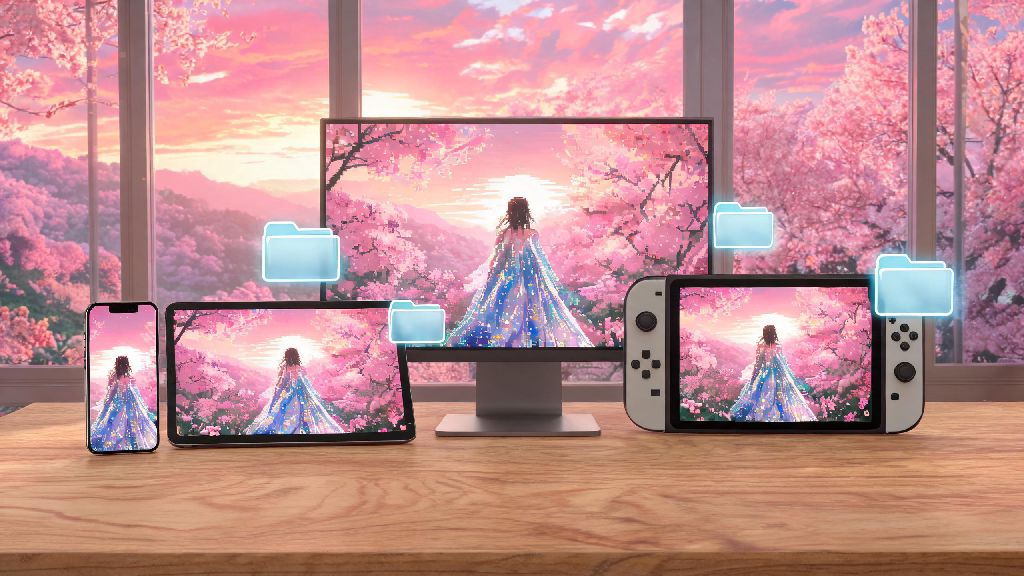
You just snapped the perfect shot of Nikki in her new celestial gown, backlit by the pink sunset over Miraland’s cherry blossom valleys, but when you go to post it to your fan group, you can’t find the file anywhere. If you’ve ever asked where do Infinity Nikki screenshots save, you’re not alone. Most players miss that the storage location changes depending on what device you’re playing on, and even hidden settings can make your captures harder to track down. I’ve spent dozens of hours testing paths across every supported platform while putting together content for my Nikki fan page, so I’ve rounded up every possible location and workaround you might need.
Where Do Infinity Nikki Screenshots Save by Device?
The exact folder for your captures changes based on the hardware you use to play, and also whether you use the in-game photo mode or your device’s native screenshot tool. We’ll break down every common platform below to save you time digging through random folders.
Android devices: Default saves go to Internal Storage > Pictures > Infinity Nikki folder for most stock Android builds. If you use a custom launcher or moved the game to an SD card, you’ll find the same named folder on your external storage instead. Screenshots taken with your phone’s physical power + volume down button will save to your general Screenshots folder, not the dedicated game one.
iOS devices: All in-game photo mode saves go directly to your Photos app in the Recents album. If you have iCloud Photos enabled, they’ll sync across all your Apple devices automatically. You don’t need to dig through hidden app folders on iOS at all, which is a big win for casual players who don’t want to mess with file management.
PC (Steam/Epic Games Store): The default path is C:\Users\[Your Username]\Pictures\Infinity Nikki\Screenshots for most standard installs. If you changed your default game save location to a different drive, you can find the folder fast by right clicking Infinity Nikki in your game library, selecting Manage, then Browse local files, and opening the Screenshots subfolder.
PlayStation 5: All captures save to your console’s Media Gallery, and you can filter by the Infinity Nikki game icon to pull up all your shots in one place. If you have auto-upload enabled for PlayStation Plus, your screenshots will also sync to the cloud so you can access them from the PlayStation app on your phone.
How to Customize Your Infinity Nikki Screenshot Save Location
Default save paths work fine for most players, but you might want to change yours if you’re running low on internal storage, or want all your game captures in one centralized folder for easy access. The process is simple for most platforms, with one key exception.
For PC players, you can adjust the save path directly in the game’s settings menu under the Photo Mode tab. Just select “Change save path” and pick your preferred folder, whether that’s on a secondary internal drive, external hard drive, or even a synced cloud folder. This is a huge help if you create a lot of fan content and need all your raw captures in the same place as your editing projects.
For Android players, you can switch saves to an SD card by opening your device’s app settings for Infinity Nikki, navigating to Storage, and selecting “Save to SD card” from the storage options menu. This will free up valuable internal storage on your phone for other apps and files. Note for iOS users: Apple restricts app-specific save location changes for security reasons, so you can’t move the default save folder for Infinity Nikki captures. You can manually move photos to custom albums in your Photos app after capture if you want to organize them that way, though.
Make sure to restart the game after you change your save location to make sure the new path registers properly. I forgot to do this once and lost 12 perfect event shots, so trust me on this small extra step.
Common Issues Finding Infinity Nikki Screenshots (And Fixes)
Even if you know the default save path, you might run into occasional glitches or hidden settings that make your captures hard to find. These are the three most common issues I’ve run into, plus simple fixes you can try in 30 seconds or less:
If you’re playing on a shared device, another common issue is other users moving the Infinity Nikki screenshot folder to a different location to organize their own files. The search function on any device will pull up the folder faster than browsing manually, so always try that first before troubleshooting further.
Tips to Organize Your Infinity Nikki Screenshot Collection
Once you know where to find your captures, you can set up a simple organization system to make it easy to find specific shots months down the line. These are the same tricks I use for my 3,000+ strong Nikki capture library, and they take barely any extra time to implement.
Create themed albums or folders for different types of captures to avoid scrolling through hundreds of files to find what you need. I have separate folders for event outfits, scenic landscape shots, collaboration outfits, and silly out-of-context clips of Nikki glitching through scenery. If you post content online, you can also make separate folders for raw shots, edited drafts, and final posts to keep your workflow smooth.
Name your files clearly if you’re storing captures on PC. The default numeric file names the game uses are impossible to search through later, so adding a short description like “spring-cherry-blossom-gown-event” will let you pull up the exact shot you want with a quick search. You don’t have to rename every single file, just the ones you know you want to use later for edits or posts.
Back up your collection regularly to a cloud drive or external hard drive. The last thing you want is to lose hundreds of your favorite captures if your device breaks, gets lost, or you have to reinstall the game to fix a glitch. I set my capture folder to auto-sync to Google Drive once a week, so I never have to worry about losing my shots even if my laptop dies.
If you share a lot of your captures on social media, you can also make a separate “share ready” folder for edited shots so you don’t have to re-edit the same photo every time you want to post it to a different fan group or platform.
Tracking down your favorite captures doesn’t have to be a headache, now that you know where do Infinity Nikki screenshots save across every device. Whether you’re sharing outfit ideas with your friend group, making fan edits to post online, or just saving shots of your favorite event rewards, these tips will help you find, organize, and back up your collection without any extra stress. Next time you snap the perfect shot of Nikki exploring Miraland, you’ll know exactly where to find it as soon as you exit the game.