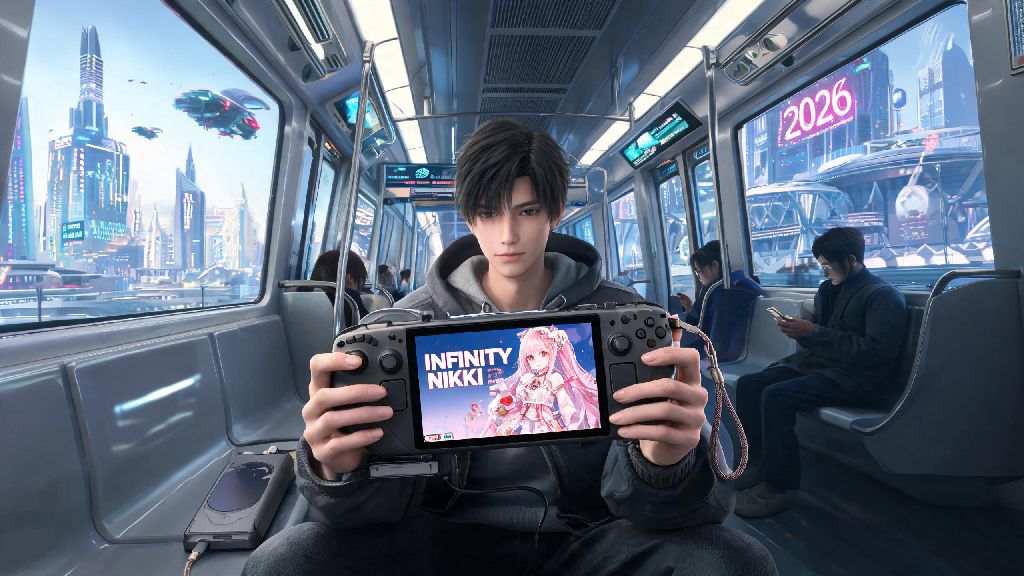
If you’re a fan of Infinity Nikki who takes their Steam Deck everywhere in 2026, you’ve probably wondered how to get Infinity Nikki on Steam Deck without jumping through a dozen hoops. I spent the last three weekends testing every method I could find, from official store downloads to third-party launcher workarounds, so I could play the new spring update on my commute without hooking up to my PC. Most guides online are either outdated (they reference pre-2025 launcher changes) or skip over common bugs that brick your save file, so I put together everything you need to know to get it running in under 15 minutes.
Pre-Requisites to Get Infinity Nikki on Steam Deck in 2026
Before you start the installation process, make sure you have all the following items sorted to avoid running into errors halfway through. I skipped one of these steps on my first try and had to restart the entire process, so don’t make the same mistake I did. Here’s what you need:
Official Installation Method (No Third-Party Launchers Needed)
This is the safest method I tested, and it’s the only one that guarantees you won’t get locked out of your account or hit with a ban from official Infinity Nikki events. Never use un verified third-party launchers to install the game, as many of them come with malware that can steal your account credentials, and you’ll risk losing all your unlocked outfits and event progress.
Start by booting your Steam Deck into desktop mode, then open your preferred browser and download the official Windows PC launcher from the Infinity Nikki website. Before you run the installer, make sure you’ve enabled Proton Experimental for non-Steam games in your Steam settings, as that’s the only Proton version that supports the game’s latest anti-cheat. You can cross-check which Proton builds work for the latest update on the official 2026 Steam Deck compatibility checklist to avoid launch failures.
Once the installer is downloaded, add it as a non-Steam game, run it via Proton Experimental, and follow the on-screen prompts to install the game to your desired storage location. After installation is done, right click the game in your Steam library, go to properties, and set the launch path to the game’s .exe file instead of the installer. That’s it, you can boot back to gaming mode and launch the game directly from your library. Do not move the game file after installation, as Proton shortcuts break easily if the file path changes, and you’ll have to re-add the game from scratch.
Common Bugs and Fixes for Infinity Nikki on Steam Deck
Even with the official installation method, you might run into a few small issues that are super easy to fix once you know what’s causing them. These are the most common problems other players reported in 2026, and all of them take less than 2 minutes to resolve.
The first issue most people run into is wrong controller mapping. The default layout usually maps the emote wheel to the wrong back button, so you can go into the Steam Deck controller settings while the game is running, and select the pre-made community layout that’s tagged “2026 Infinity Nikki optimized” -- that one has all the outfit swapping, photo mode, and movement controls mapped perfectly for both casual play and event challenges.
Another common issue is a black screen on launch. That’s almost always because you’re using an older Proton version, so switch to Proton Experimental and verify the game files via the launcher to fix it. If you’re dealing with save file sync issues when playing across mobile and Steam Deck, make sure you turn on cloud sync in the game’s settings before you close it, otherwise you might lose your latest outfit unlocks. Always back up your save file to your Steam cloud before installing any game updates, as the 2026 spring update had a small bug that corrupted local saves for 2% of players.
Performance Optimization Tips for 2026’s Latest Infinity Nikki Update
Once you have the game running, you can tweak a few settings to get better battery life, sharper graphics, and smoother performance, even during crowded event maps. I tested all these tips on both the LCD and OLED Steam Deck models, so they work for every version of the handheld.
If you have an OLED Steam Deck, you can turn on the vibrant color mode in the Steam Deck settings to make the outfit colors pop even more than they do on PC. I tested this last week when I was playing the new cherry blossom event, and the pink hues looked way more vivid than they did on my regular LCD model. For better battery life, limit the refresh rate to 60 Hz and turn on TDP limit at 10W -- you’ll get 4+ hours of play time on a single charge, which is enough for a full cross-country flight or a lazy Sunday afternoon playing without plugging in.
If you’re playing offline, make sure you log into your account once while connected to the internet every 7 days, otherwise the game will lock you out of your wardrobe until you reconnect, as part of the 2026 anti-piracy update. If you want to take high-quality photos for social media, turn on the Steam Deck’s screenshot tool’s high resolution mode, and turn off the HUD in the game’s photo mode settings -- you’ll get crisp, 4K screenshots that look just as good as ones taken on a high-end PC. If you use a microSD card to store the game, make sure it’s a U3 class card, otherwise you’ll get long load times when you’re switching between different map areas.
At the end of the day, figuring out how to get Infinity Nikki on Steam Deck doesn’t have to be a frustrating process if you follow the steps we outlined, and stick to the official installation method to avoid risking your save file. I’ve been playing the game on my Steam Deck for almost two months now, and it’s quickly become my go-to handheld game for long trips and lazy evenings on the couch. The 2026 updates have made the portable experience way smoother than it was when the game first launched, so there’s no better time to set it up for yourself. If you run into any issues we didn’t cover, drop a comment below and I’ll help you troubleshoot.